
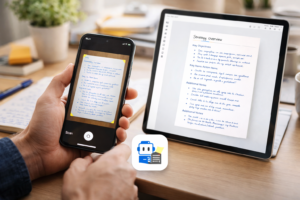
Converting handwritten notes into clean, searchable PDFs used to require expensive desktop software and a lot of patience. In 2026, a combination of dedicated scanning apps, specialised handwriting OCR tools, and powerful multimodal AI models has made this process genuinely accessible and, in some cases, remarkably accurate.
Here are five of the best tools available right now, ranked from most accessible to most powerful, with honest information about what each one actually does well and where its limits are.
5. Microsoft OneDrive / Microsoft 365 Copilot (Scanning)
Best for: Students, Microsoft 365 users, and everyday document scanning
Microsoft retired its standalone Microsoft Lens scanning app in early 2026, folding its core scanning capabilities into the OneDrive mobile app and the Microsoft 365 Copilot suite.
- How it works: Open the OneDrive mobile app, tap the plus icon, and select “Scan.” This opens the camera, and after scanning, Microsoft processes it into a Lens-style document that you can edit or save to OneDrive.
- What it does well: It produces clean, readable scans and can export to a searchable PDF or Word format. The page-flattening and shadow-removal capabilities are solid for everyday use.
- Important limitation to know: Scans are saved to OneDrive cloud storage by default — not to your local device. You’ll need to manually download files from the cloud if you want them saved locally. This is a meaningful change from how Microsoft Lens worked, and worth knowing before you rely on it.
- Honest note on handwriting: Like most scanning apps, OneDrive’s OCR engine performs well on neat, printed handwriting and works best with clearly written block letters. Messy or cursive handwriting may require correction after the fact.
- Cost: Free with a Microsoft account. Microsoft 365 subscription unlocks additional features.
4. Adobe Scan
Best for: Professional-grade PDF output, office documents, and structured notes
Adobe Scan is the most established name in mobile document scanning and remains a reliable choice for producing clean, structured PDFs.
- How it works: Adobe Scan uses the Adobe Sensei AI engine to detect document borders and enhance text clarity, automatically removing glare and shadows in real time.
- The Straighten feature: Adobe Scan automatically straightens captured documents and books by default, with an option to manually control curvature correction per page in crop mode. It’s worth noting this feature has been in the app for some time and received enhancements in early 2026 — it was not newly introduced in March 2026.
- What it does well: Adobe Scan produces highly compressed, professionally formatted PDFs. For neatly printed notes or typed text, OCR works well and produces searchable documents.
- Important limitation to know: Adobe’s OCR technology is optimised for printed text. Handwriting recognition is a secondary capability — accuracy varies significantly based on writing style, clarity, and document quality, and manual review is essential when working with cursive or irregular handwriting. If your notes are messy or cursive, a specialist tool (like Pen to Print, listed below) will give better results.
- Cost: Free tier available. OCR in Adobe Scan is limited to 25 pages on the free plan; a Premium subscription raises this to 100 pages per file.
Read More: 10 AI Tools Every STEM Student Should Know About in 2026
3. Pen to Print
Best for: Cursive handwriting, personal journals, old letters, and messy scripts
While general scanning apps struggle with connected cursive writing, Pen to Print is built specifically for it.
- How it works: Pen to Print uses a dedicated handwriting OCR engine trained to handle messy handwriting and cursive scripts that other scanning apps cannot reliably read. You photograph your page, and the app converts it to editable, searchable text.
- What it does well: Pen to Print converts scanned handwritten documents into plain text files, Word documents, and searchable PDFs, and is capable of preserving formatting elements like titles, bullet points, and numbering. It’s particularly well suited for journals, long-form letters, and student notes.
- Honest note on accuracy: No handwriting OCR tool is perfect. Results depend heavily on scan quality and how consistent your handwriting is. Always review the output before relying on it.
- Cost: The first 10 pages are free to convert and download. The premium version is priced at around $5.99 per month or $39.99 per year and unlocks unlimited conversions, editing, and export.
2. NoteOCR
Best for: Messy cursive handwriting and structured data extraction
NoteOCR is a specialised document digitisation tool designed to handle handwriting that generic scanners cannot manage reliably.
- How it works: NoteOCR focuses on cursive accuracy and structured data extraction, with an OCR engine optimised for difficult handwriting. It can automatically convert handwritten tables into formatted Word and Excel files.
- What it does well: NoteOCR transforms messy and cursive handwriting into organised digital formats, with export options to .docx and .pdf. It offers scalable page credit bundles for users who need to process larger volumes of notes.
- Honest note: NoteOCR is a newer, less widely reviewed tool compared to established names like Adobe Scan or Pen to Print. If you are evaluating it for important documents, test it with a sample of your own handwriting first before committing to a plan.
1. Gemini 2.5 Pro or GPT-5 (Multimodal AI Vision)
Best for: Maximum accuracy on complex or difficult handwriting
In 2026, the top spot for handwriting recognition goes not to a dedicated scanning app, but to large multimodal AI models — specifically Google’s Gemini 2.5 Pro and OpenAI’s GPT-5. These models understand both the image and the language context simultaneously, which allows them to make sense of words that are smudged or unclear by reading the surrounding text.
- How it works: Take a clear photo of your handwritten notes and upload it to the Gemini app (via Google AI Studio for best results) or ChatGPT, with a prompt such as: “Please transcribe this handwritten note and organise it into clear sections.”
- The accuracy evidence: According to the DeltOCR Bench, a 2026 OCR benchmark, GPT-5 achieved 95% accuracy on handwriting, the strongest performance among evaluated models, followed by olmOCR-2-7B at 94% and Gemini 2.5 Pro at 93%.
- In a separate 2026 handwriting benchmark using 100 cursive samples from real writers, GPT-5, Gemini 3 Pro Preview, and olmOCR-2-7B were the top-performing models, achieving the highest semantic similarity scores and the most consistent interpretation of cursive text.
- Important limitation to know: Neither Gemini nor ChatGPT exports a formatted PDF directly from a photo in one step. These tools transcribe the text, which you will then need to copy that output into a document editor and export it as a PDF yourself. Think of them as the most accurate transcription layer, not an all-in-one PDF generator.
- Also, accuracy on genuinely messy or non-standard handwriting can still vary. Always review the output carefully.
- Cost: Both tools have free tiers with usage limits. Paid plans (ChatGPT Plus at $20/month, Google One AI Premium at $19.99/month) provide priority access and higher usage limits.
Which Tool Should You Choose?
| Your Need | Best Tool |
|---|---|
| Maximum transcription accuracy | GPT-5 / Gemini 2.5 Pro |
| Cursive or very messy handwriting | Pen to Print or NoteOCR |
| Professional, formatted PDF output | Adobe Scan |
| Quick, everyday scanning (Microsoft user) | OneDrive / Microsoft 365 Copilot |
| Free option for students | Pen to Print (10 free pages) or OneDrive |
One Practical Tip for Better Results
Regardless of which tool you use, lighting and angle matter more than most people expect. Place your paper on a flat surface, hold your phone or camera directly above it, and use natural daylight when possible. Shadows cast across the page are the most common reason any AI tool struggles to read handwriting accurately, and they’re entirely avoidable.
Also Read: Anthropic’s New Design AI Looks Impressive But The Reality Is More Complicated