

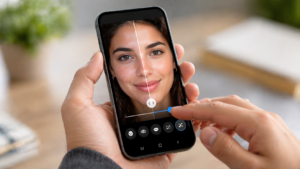
Google has started rolling out a new set of face-focused touch-up tools inside the Google Photos editor. At first glance, this might look like a routine update. It is not. What Google has quietly done here is reduce the need for most people to ever leave the app for basic photo fixes.
Instead of opening a separate editing app, making adjustments, and then coming back, you can now handle small corrections directly where your photos already live. That small shift matters more than the feature list itself.
The update is rolling out globally on Android, although availability depends on your device and region.
What these tools actually do
The new tools are focused entirely on faces, and they are designed for small, targeted edits rather than dramatic transformations. You can smooth skin, remove minor blemishes, brighten eyes, or slightly whiten teeth. There are also more specific controls like adjusting under-eye areas, eyebrows, lips, and irises.
What stands out is not the tools themselves. Similar features have existed elsewhere for years. The difference is how controlled they are. Every tool comes with an intensity slider, which makes it easier to keep changes subtle instead of going too far.
How it works in real use
Using these tools is straightforward. You open a photo, go into the editor, tap on a face, and choose the adjustment you want. Then you fine-tune it with a slider.
There is no learning curve. If you have ever used the basic Google Photos editor, this feels like a natural extension of it. That simplicity is what makes it more likely people will actually use it instead of ignoring it.
Where this actually becomes useful
This is not a feature built for heavy editing or perfecting every image. It is far more practical than that.
Think about the kind of photos people actually take and share. A group photo where one person has a distracting blemish. A selfie where the lighting makes your eyes look dull. A good candid shot where your face just looks a bit tired. These are the moments where this update fits in.
Before this, fixing those things meant switching apps or just ignoring the issue. Now it takes a few seconds, and you stay in the same app the entire time.
What most people get wrong when using tools like this
The biggest mistake is not technical. It is a restraint.
When people see editing tools, the instinct is to use them fully. That is exactly how photos start looking unnatural. The strength of these tools is in how lightly they can be used.
If the change is obvious, it is probably too much. If you can feel the difference without clearly seeing it, that is usually the right level. The goal here is not to improve the photo in a visible way, but to remove small distractions that pull attention away from it.
Another common mistake is stacking multiple edits. Fixing one thing is usually enough. Trying to fix everything often makes the result worse.
Read More: Why Your Google Photos Storage Fills Up Even If You Haven’t Uploaded Anything?
Availability and limitations
Google is rolling this out gradually, so not everyone will see it at the same time. It is currently limited to Android devices running Android 9.0 or newer, and it requires at least 4GB of RAM.
If the feature has not appeared yet, it is likely just part of the staged rollout rather than a device issue.
Why this update matters more than it seems
On the surface, this is just a set of touch-up tools. In practice, it reflects a bigger shift in how Google Photos is evolving.
It is no longer just a place to store and back up images. It is becoming the place where people prepare those images before sharing them. The more editing happens here, the less reason there is to rely on other apps for everyday use.
That convenience is what will make this feature stick. Not because it is new, but because it removes friction from something people already do.
Final thought
These tools are not about transforming photos. They are about small corrections that make a photo feel closer to how you remember it.
Used carefully, they do exactly that. Used heavily, they lose the point entirely.
The difference comes down to how you use them, not what they are capable of.
Also Read: Sending Your Phone for Repair? Your Google Photos May Be Visible