

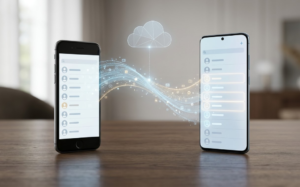
When setting up a new smartphone, many users are surprised to see their old contacts appear automatically, sometimes within minutes, without any manual transfer. This often creates confusion, especially for those who did not actively back up or move their data.
In reality, this is not accidental. Contact syncing is a built-in feature of modern smartphone ecosystems, designed to ensure continuity across devices. However, the process is not always fully understood.
The Core Reason: Cloud-Based Accounts
The most important factor behind automatic contact syncing is the use of cloud-linked accounts, especially Google accounts on Android devices and Apple IDs on iPhones.
When contacts are saved to these accounts instead of the phone’s internal storage or SIM card, they are:
- Stored on remote servers (the “cloud”)
- Continuously synced across devices linked to the same account
So, when you sign into a new phone using the same account, the device simply downloads the existing contact list from the cloud. This creates the impression that contacts are “coming from the old phone,” when they are actually being retrieved from an online account.
When the same account is used on multiple devices, the system treats those devices as belonging to the same user and keeps their contact lists synchronized automatically.
Important clarification:
Each contact is stored within a specific account (for example, Google, iCloud, or another service). However, a phone can display contacts from multiple accounts together, which often makes it seem like everything is stored in one place.
Not All Contacts Are Stored the Same Way
A key detail many users overlook is where contacts are saved. Contacts can be stored in three main places:
- On the device (local storage)
- On the SIM card
- In a cloud account (like Google or iCloud)
Only contacts stored in a cloud account will automatically sync across devices.
If contacts were saved locally or on a SIM, they usually do not transfer automatically unless manually copied or backed up.
However, on some devices, users may choose to copy or move local/SIM contacts into a cloud account. Once this happens, those contacts become cloud-based and will begin syncing across devices.
SIM-based contact storage is now rarely used due to its limitations (limited storage, fewer fields), and most smartphones encourage cloud storage by default
Sync Happens Automatically by Default
Modern smartphones are designed to enable sync features during setup.
For example, when signing into a Google account on Android:
- Contact sync is often enabled
- The phone periodically checks for updates
- New or edited contacts are synced in the background
This happens silently, without requiring user action each time.
Sync is not always instant. It depends on internet connectivity, background activity permissions, and system conditions. In some cases, contacts may appear with a delay rather than immediately.
The “Default Account” Detail Most People Miss
When you create a new contact, your phone usually assigns it to a default account automatically.
If multiple accounts are added (for example, personal + work email), contacts may get saved across different accounts without you noticing.
This leads to situations where:
- Some contacts sync to new devices
- Others don’t appear at all
This is one of the most common reasons users experience “partial contact transfer.”
Why Contacts Sometimes Reappear Unexpectedly
Some users notice deleted or old contacts reappearing on a new phone.
This can happen if:
- Contacts were deleted on one device, but not synced properly
- Multiple accounts are connected (e.g., two Google accounts)
- Contacts exist in another linked service (like email accounts)
- Another device still has sync enabled
- The account was previously signed in elsewhere and has not been removed
When syncing occurs, the system restores contacts from the cloud version, which may not match what was last seen on one device.
Key point:
Deleting a contact on one device does not always remove it everywhere unless the deletion syncs successfully across all connected accounts.
Sync vs Import: A Crucial Difference
This is where many users get confused.
| Feature | Sync | Import |
|---|---|---|
| Type | Continuous process | One-time transfer |
| Updates across devices | Yes | No |
| Happens automatically | Yes (if enabled) | No |
| Example | Google account syncing contacts | Copying contacts via file or SIM |
If contacts were imported instead of synced, they will not update across devices later.
Role of Backup and Restore During Setup
When setting up a new phone, users are often asked whether they want to restore data from a previous device.
If accepted, the system may:
- Restore contacts
- Reinstall apps
- Sync settings
This works alongside cloud syncing, making it appear as if the phone is directly copying data from the old device.
In reality, most of this data comes from backups stored in the account, not from the device itself.
Third-Party Apps and Contact Access
Some apps can interact with your contacts if given permission.
Examples include:
- Messaging apps
- Email services
- Social media platforms
These apps may use contact information to enhance features (like finding people you know), and in some cases, may sync related data across devices.
However, how each app handles contact data depends on its design and permissions. Not all apps store or sync full contact lists in the same way.
When Settings Interfere With Sync
In some cases, syncing does not behave as expected due to system settings.
For example:
- Battery saver mode may pause background sync
- Data saver settings may restrict updates
- Sync toggles may be turned off for specific accounts
This can delay or prevent contacts from appearing on a new device, even when everything else seems correct.
Privacy and Control Considerations
Automatic syncing can raise privacy concerns, especially when:
- Contacts appear on shared or new devices
- Multiple accounts are logged in
- Users are unaware of sync settings
If someone signs into your account on another device, that device may also receive your contacts. However, users have control over this.
Most smartphones allow you to:
- Turn contact sync on or off
- Choose which accounts can sync contacts
- Remove accounts from devices
Removing an account from a device removes synced contacts from that device, but they remain stored in the cloud unless deleted from the account itself.
Real-World Observations That Explain Most Confusion
- Seeing duplicate contacts → often caused by multiple accounts syncing together
- Contacts “coming back” after deletion → usually restored from another synced device or account
- Missing contacts on a new phone → often saved to a different account or locally
- Contacts appearing instantly → pulled from cloud backup, not the old phone
Final Takeaway
Contacts automatically syncing from old phones is not a glitch; it is the result of cloud-based account systems designed for convenience. When contacts are stored in services like Google or Apple accounts, they are continuously synced and made available across devices linked to that account.
While this makes switching devices seamless, it can also create confusion when users are unaware of how contacts are stored or which accounts are involved.
Understanding where your contacts are saved and how syncing works gives you full control over what appears on your devices.
FAQs
1. Why did all my contacts appear on my new phone automatically?
Because your contacts were saved in a cloud account (like Google or iCloud), and your new phone synced them after you logged in.
2. Why are some contacts missing after switching phones?
They may have been saved locally, on a SIM card, or in a different account that is not currently synced.
3. Why do deleted contacts sometimes come back?
Because another device or account still has those contacts and resyncs them to your phone.
4. How can I check where a contact is stored?
Open the contact and look for the “Account” or “Stored in” field, it shows whether the contact is saved in Google, device storage, SIM, or another service.
Hi there,
I’m Georgia, and I’ve been creating powerful digital solutions for over 8 years as a web designer.
Together with my knowledgeable staff, I am an expert in e-commerce, WordPress, and Shopify development, backed by PPC, social media, and SEO tactics.
Our purpose is to provide quantifiable online growth by coordinating design with business objectives.
Every project we work on is designed to satisfy customer demands and provide outcomes.
I’d be pleased to show you samples of our work and provide adjustable prices to meet your needs.
Thank you
Georgia | Founder & Marketing Director
Toll Free: +1 800 240 2815
http://wa.me/917042524727
Note: – If you’re not Interested in our Services, send us NO.
Your website: interesthive.com
Hello team interesthive.com,
Today’s customers don’t just use Google—they rely on voice search and AI platforms like ChatGPT and Gemini.
We help businesses stay visible everywhere through:
• SEO (organic traffic)
• AEO (featured answers)
• GEO (AI platform visibility)
May I send you a quote & price list?
Best regards,
Brianna Belton | Project Manager
http://www.Mapmybiz.org
Connect : 1 213 262 0124
Hi [interesthive.com],
I was checking your website and find out you have a good design and it looks great, but it’s not ranking on Google and other major search engines.
We can place your website on Google’s 1st page. Yahoo, Facebook, LinkedIn, YouTube, Instagram, Pinterest etc.
I’ll be happy to send you a free proposal and pricing list.
Thank you
Georgia | Founder & Marketing Director
Toll Free: +1 800 240 2815
http://wa.me/917042524727
Note: – If you’re not Interested in our Services, send us NO.
Hi [interesthive.com],
I was checking your website and find out you have a good design and it looks great, but it’s not ranking on Google and other major search engines.
We can place your website on Google’s 1st page. Yahoo, Facebook, LinkedIn, YouTube, Instagram, Pinterest etc.
I would be pleased to provide you with “charges,” “Proposals,” details of past work!
Thank you
Georgia | Founder & Marketing Director
Toll Free: +1 800 240 2815
http://wa.me/917042524727
Note: – If you’re not Interested in our Services, send us NO.
Hi there,
I’m Georgia, and I’ve been creating powerful digital solutions for over 8 years as a web designer.
Together with my knowledgeable staff, I am an expert in e-commerce, WordPress, and Shopify development, backed by PPC, social media, and SEO tactics.
Our purpose is to provide quantifiable online growth by coordinating design with business objectives.
Every project we work on is designed to satisfy customer demands and provide outcomes.
I’d be pleased to show you samples of our work and provide adjustable prices to meet your needs.
Thank you
Georgia | Founder & Marketing Director
Toll Free: +1 800 240 2815
http://wa.me/917042524727
Note: – If you’re not Interested in our Services, send us NO.
Your website: interesthive.com