
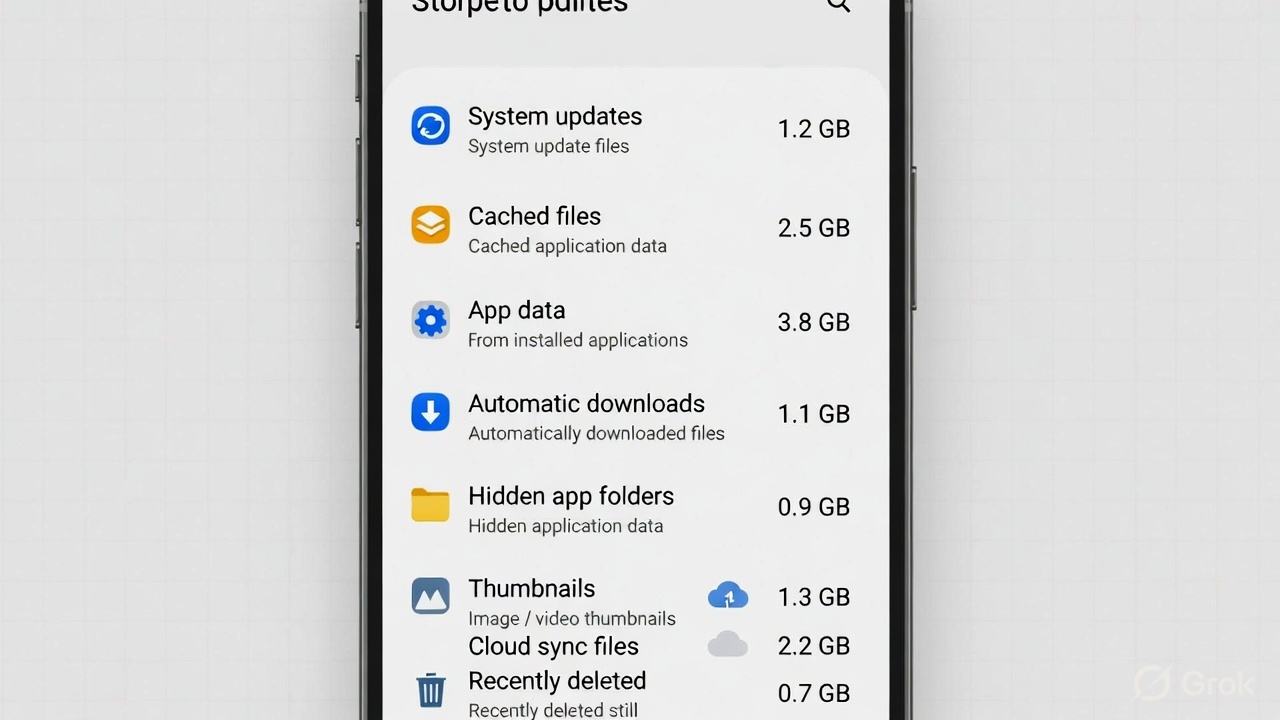
Many smartphone users eventually encounter a frustrating situation: their phone shows low storage space even though they have not downloaded new apps, photos, or videos. The storage appears to fill up on its own.
In reality, smartphones constantly create and store background data. System updates, cached files, app data, and automatic downloads can all consume storage without the user noticing.
Understanding these hidden storage sources can help explain why available space keeps shrinking and what users can do about it.
System Updates and Temporary Files
Smartphones regularly download system updates in the background. Even before installation, update packages can take up significant storage space. After installation, temporary files may remain on the device for some time before being cleared automatically.
Modern smartphones may also reserve a portion of storage for system use, update installation, and recovery partitions. This reserved space is not available to users and may make the total usable storage appear smaller than expected. System files are necessary for the device to function properly and are usually not removable manually.
Some devices also store temporary system cache files created during normal operation. If these files are not cleared automatically, they may continue to occupy storage until they are removed through system settings or maintenance tools.
App Cache and Background Data
Apps store temporary files called cache to improve performance and load content faster. Over time, cached data can grow significantly.
Streaming apps, social media apps, and web browsers often store large amounts of cached images, videos, and page data.
Some apps also download content automatically in the background. Messaging apps may download photos and videos automatically depending on their settings, while music and video apps may save files for offline use. Auto-download behavior varies by app, and users can usually control it in app settings.
Clearing app cache can free storage space, although cached data may build up again over time.
Web browsers can also accumulate storage through history databases, cookies, and offline page data, which may gradually increase storage usage without obvious downloads.
On some devices, app updates may temporarily require additional storage during installation. This temporary usage can make storage appear full even if no new apps were installed.
Hidden App Data
Even when apps are not actively used, they store data such as settings, login information, and internal databases. This data is usually invisible to users but continues to grow.
Some apps also store media files inside hidden folders that may not appear in the phone’s gallery. Messaging and social media apps can store images, videos, and temporary files in these directories, contributing to storage use without obvious signs.
On Android devices in particular, apps may store additional installation components and resources during updates, which can gradually increase the amount of storage used by the same app over time. Removing unused apps can reduce this hidden storage use.
Some devices also support app archiving or offloading, which removes most of an app while keeping user data. This can reduce storage usage without completely deleting the app.
Photos, Thumbnails, and Media Files
Photos and videos take up significant storage space, but additional hidden files are often created alongside them.
Smartphones automatically generate thumbnail images and media indexes to make galleries load faster. These small files accumulate over time and may continue to exist even after some photos are deleted.
Photo editing apps and camera features such as HDR or portrait mode may also store additional versions of the same image.
These extra files can make photo storage larger than expected.
Cloud Sync and Offline Copies
Cloud services such as backups and photo synchronization often keep local copies of files on the device. Even when files appear to be stored in the cloud, a version may still exist locally for quick access. Offline viewing features in music, video, and navigation apps can also store large files without users realizing it. In some cases, older synced files may remain on the device even after they are removed from the cloud.
Backup services may also create temporary local files during synchronization. These files may remain on the device until the next cleanup cycle.
Recently Deleted Files
Deleting files does not always free storage immediately. Most smartphones include a Recently Deleted or Trash folder where files remain for a period of time before permanent removal. Photos and videos stored in these folders continue to occupy storage until they are permanently deleted.
System Logs and Diagnostic Files
Smartphones generate small log files that help diagnose performance problems and software issues.
These files are usually small and automatically managed, but in rare cases — such as repeated app crashes or software errors — logs can grow larger than usual and consume noticeable storage.
Signs Storage Is Filling Automatically
Users may notice certain warning signs that storage is being used in the background:
- Storage space decreases gradually over time
- The phone shows “Storage Almost Full” warnings
- Apps appear larger than expected
- System storage grows without a clear reason
- The device slows down or struggles to install updates
Some phones may display messages such as “Insufficient storage available” even when users believe there should be enough free space. This can happen because temporary files or reserved system storage reduce the space available for new installations.
How to Manage Storage More Effectively
Several simple steps can help prevent storage from filling unexpectedly:
- Clear app cache periodically
- Remove unused apps
- Review messaging app download settings
- Delete unnecessary photos and videos
- Empty the Recently Deleted or Trash folders
- Check offline downloads in streaming apps
- Move large files to cloud storage or external storage when available
Checking the storage breakdown in device settings can help identify categories such as apps, system data, media, and cached files that are using the most space. Regularly checking storage settings can help identify which apps or categories are using the most space.
Phone storage can fill up even without intentional downloads because smartphones continuously store system files, cached data, hidden app content, and temporary files. These background processes are part of normal device operation, but they can gradually reduce available storage space.
Understanding where storage goes makes it easier to manage space and avoid unexpected low-storage warnings.
Frequently Asked Questions (FAQ)
1. Why is my phone storage full when I have no photos or apps?
This is usually caused by System Data and App Cache. Even if you don’t download new files, apps like TikTok, Instagram, and Chrome save “cached” versions of every video and webpage you view to speed up loading times. Over several months, this hidden cache can grow to several gigabytes. Additionally, pending system updates and “Other” storage categories contain logs and temporary files that occupy space behind the scenes.
2. Does deleting a photo immediately free up storage space?
No. Most modern smartphones (iPhone and Android) move deleted photos to a “Recently Deleted” or “Trash” folder first. These files continue to occupy the same amount of storage for 30 days unless you manually “Empty Trash” or “Delete All” from that specific folder. Only after clearing the trash will the storage reflect as free space.
3. What is “System Data” or “Other” storage, and can I delete it?
“System Data” (formerly called “Other” on iOS) includes the operating system itself, system logs, voice assets for Siri/Google Assistant, and temporary files. While you cannot delete the core operating system, you can reduce this category by clearing your browser history, deleting old text message threads with large attachments, or performing a “Reset All Settings” (which clears system-level temporary files without deleting your apps).
4. Why does my phone say “Storage Full” right after an update?
System updates often require “working space.” For an update that is 2GB, the phone might actually need 4-5GB of free space to download, unpack, and install the new software. Furthermore, after an update, the phone may keep the old OS files for a short period as a fallback in case the update fails, which temporarily doubles the space used by the system.
5. How can I stop my storage from filling up automatically in the future?
The most effective way is to disable “Auto-Download” in messaging apps like WhatsApp or Telegram. These apps are often set to automatically save every photo and video sent in group chats to your phone’s gallery. You should also enable “Offload Unused Apps” (on iPhone) or “Archive Apps” (on Android), which removes the app software but keeps your personal data, saving space without losing your progress.