
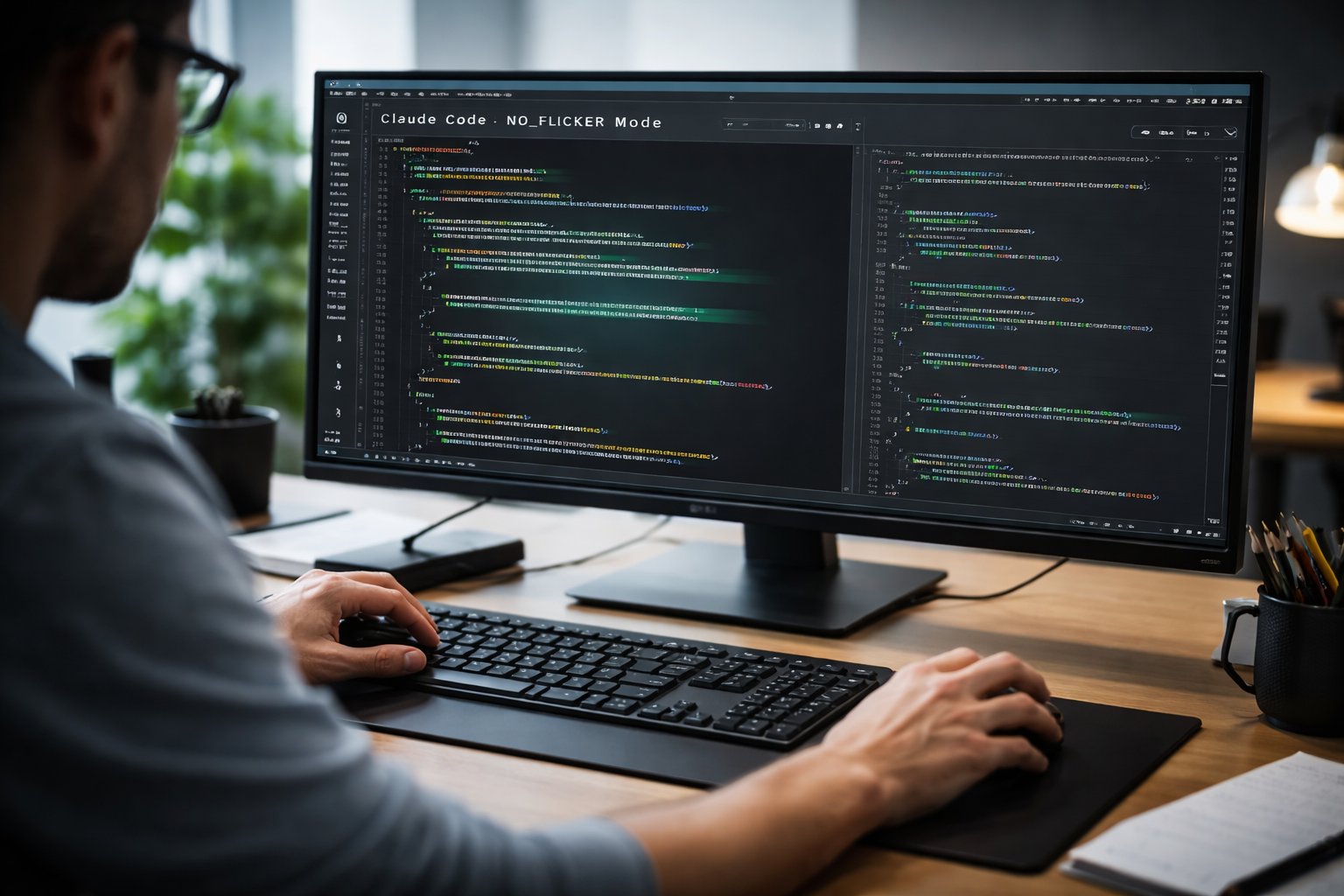
After months of developer frustration, Anthropic has introduced an experimental feature in Claude Code that targets one of its most persistent issues: terminal flickering.
Called NO_FLICKER mode, the update is easy to enable but represents a deeper shift in how the tool behaves during real work. Early feedback suggests it makes long coding sessions noticeably smoother rather than just slightly better.
The Real Problem Most Articles Oversimplify
Flickering was never just about visuals.
In traditional terminals, the screen is often redrawn completely using ANSI escape sequences. That works for static output but breaks down when the interface updates continuously, like in an AI chat.
What developers actually experienced was:
- Loss of reading position during responses
- Difficulty tracking streaming outputs
- Subtle eye strain over long sessions
- Reduced speed when reviewing generated code
These are workflow problems, not cosmetic ones.
What NO_FLICKER Mode Actually Changes
Instead of redrawing the full screen, Claude Code now uses a virtual viewport. Only the visible portion is updated, which removes the constant flashing effect in most cases.
You can enable it with:
CLAUDE_CODE_NO_FLICKER=1 claude
Or add it to your shell configuration for permanent use.
Why This Matters More in Real Workflows
When reviewing a long AI-generated function, developers often scroll back and forth multiple times. With flickering, every new response can shift the screen slightly, forcing you to re-locate where you were.
That small interruption compounds over time.
With NO_FLICKER mode, the interface behaves more predictably. Your visual position stays stable, which directly improves how fast you can read, compare, and edit code.
This is especially noticeable in:
- Debugging sessions
- Multi-step prompts
- Large file edits
- Long AI conversations
The Unexpected Shift Toward IDE-Like Behavior
One of the most important upgrades is native mouse support.
You can now:
- Click to position the cursor
- Select text cleanly without UI artifacts
- Scroll through long outputs smoothly
- Interact with links and file paths
This is not just convenience. It changes how the terminal is used.
A useful comparison:
| Feature | Traditional Terminal | With NO_FLICKER Mode |
|---|---|---|
| Cursor movement | Keyboard only | Mouse + keyboard |
| Text selection | Often messy | Clean and predictable |
| Navigation | Linear | More flexible |
| Interaction | Limited | Closer to an editor |
This effectively reduces the gap between terminal tools and lightweight IDEs.
Performance Insight That Actually Matters
In earlier versions, long sessions could feel heavier over time. This was partly due to how rendering and memory handling worked together.
With the updated system:
- Rendering is more controlled
- Resource usage is more stable in long sessions
- Large outputs feel smoother to navigate
This aligns with improvements introduced in Claude Code v2.1.88, which also addressed memory handling issues.
Trade-offs You Should Know Before Enabling It
This is still experimental, and there are trade-offs:
- Native search shortcuts like Cmd+F may not work
- You may need to use the built-in search instead
- Copy and paste behavior is slightly different
- Scrolling may feel unusual depending on your terminal
These are not deal-breakers, but they matter if you rely heavily on muscle memory.
Practical Tips:
These will actually help you get the most out of it:
1. Test it in your main workflow, not casually
The difference is most noticeable during long sessions, not quick tests.
2. Disable heavy terminal themes or effects
Some visual plugins can interfere with smooth rendering.
3. Try it with different terminal apps
Performance can vary between terminals like iTerm2, Windows Terminal, or others.
4. Use it when reviewing large outputs
That is where the biggest improvement shows up.
5. If scrolling feels off, adjust your terminal settings
This is one of the few areas still being tuned.
A Subtle but Important Industry Shift
This update shows something bigger than just a bug fix. Terminal tools are slowly evolving to handle AI-native workflows. That means:
- Less reliance on old rendering methods
- More interactive interfaces
- Better handling of long, dynamic sessions
Instead of forcing AI into traditional terminals, tools like Claude Code are starting to adapt the terminal itself.
Should You Use It?
If you regularly use Claude Code for extended sessions, it is worth enabling.
If your usage is occasional, the difference may feel minor.
The real benefit appears when you spend long periods reading, editing, and interacting with AI-generated content.
Conclusion
NO_FLICKER mode is a focused improvement, but its impact is more practical than it first appears.
By stabilizing the interface and introducing better interaction, it removes small but constant sources of friction in AI-assisted development.
It is still experimental, but it clearly points toward a future where terminal-based AI tools feel smoother, more predictable, and easier to work with over long periods.
Quick FAQs
What does NO_FLICKER mode do?
It reduces terminal flickering by updating only the visible part of the screen instead of redrawing everything.
How do I enable it?
Run CLAUDE_CODE_NO_FLICKER=1 claude or add it to your configuration.
Is it stable?
It is experimental, so some behaviors may still change.
Does it improve performance?
It is designed to keep resource usage more stable in longer sessions.
Is mouse support included?
Yes, it adds native mouse interaction for cursor movement, selection, and navigation.