

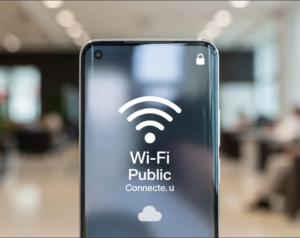
Public Wi-Fi networks are widely used in airports, hotels, cafés, shopping centers, and railway stations. They provide convenient internet access without using mobile data, but many users do not realize that simply connecting to public Wi-Fi can trigger automatic cloud syncing in the background. Photos, messages, backups, documents, and app data may start uploading or downloading without any visible notification.
Understanding how cloud synchronization works on public Wi-Fi can help users protect their privacy, control data transfers, and avoid unexpected risks.
How Automatic Cloud Syncing Works
Modern smartphones and computers are designed to keep data synchronized across devices. Services such as cloud photo storage, document backups, email syncing, and app updates operate automatically once an internet connection is available.
When a device connects to Wi-Fi, including public networks, the system may begin syncing:
- Photos and videos
- Contacts and calendars
- App data
- Device backups
- Documents and files
- Messages and attachments
- Software updates
This process often runs silently in the background. Users may only notice it when storage updates or battery usage increase. Many devices are configured to sync only when connected to Wi-Fi to save mobile data. As a result, the moment a public Wi-Fi connection becomes available, queued uploads may begin automatically.
Large Backups May Upload Without Warning
One common example involves automatic backups. Smartphones frequently back up data to cloud services such as Google Drive or iCloud. If backups have been waiting due to limited mobile data or weak connectivity, they may start immediately after connecting to Wi-Fi.
These backups can include:
- Photos and videos
- App data
- WhatsApp chat backups
- Device settings
- Contacts and call history
Because backups may run in the background, users may not realize that personal data is being transmitted over a public network.
Why Public Wi-Fi Can Be Risky
Public Wi-Fi networks are often less secure than private home or office networks. Some networks are open and do not require passwords, while others use shared passwords known to many people. Potential risks include:
- Unsecured Networks: On unencrypted networks, data traffic may be easier to intercept by attackers using specialized tools. While modern apps usually use encrypted connections (HTTPS), unsecured networks still increase exposure to certain attacks.
- Fake Wi-Fi Networks: Attackers sometimes create networks with names similar to legitimate ones, such as “Free Airport WiFi” or “Hotel Guest Network.” If users connect to these networks, attackers may attempt to monitor traffic or capture login information.
- Man-in-the-Middle Attacks: In some cases, attackers may try to intercept or modify communications between a device and cloud servers. Encryption reduces the risk, but poorly configured connections may still be vulnerable.
Encryption Reduces — But Does Not Eliminate — Risk
Most major cloud services use strong encryption to protect data during transfer. This means files being uploaded to cloud storage are generally protected from casual interception. However, encryption does not prevent all risks. For example:
- A compromised network may redirect users to fake login pages.
- Devices may automatically connect to unsafe networks.
- Malware distribution is more common on untrusted networks.
- Sensitive metadata (like server connections) may still be visible.
For these reasons, security experts recommend treating public Wi-Fi as a potentially untrusted environment.
Background Syncing Also Uses Battery and Storage
Automatic syncing on public Wi-Fi can also affect device performance. Large uploads may drain the battery faster, slow down device performance, or trigger overheating. Users may notice the device becoming warm after connecting to Wi-Fi.
How to Control Automatic Syncing
Users can reduce risks by adjusting syncing and network settings.
- Disable Auto-Connect: Turn off automatic connection to open Wi-Fi networks in your smartphone settings.
- Pause Cloud Backups: Some apps allow backups only on trusted networks. Manually pause backups when using public Wi-Fi.
- Set Connection as “Metered”: In your Wi-Fi settings, marking a connection as “Metered” tells your device to treat it like a mobile data plan, stopping large background uploads.
- Use a VPN: A Virtual Private Network (VPN) encrypts internet traffic between the device and the VPN server, adding a layer of protection.
When Automatic Syncing Is Useful
Automatic syncing is not always a problem. It keeps files backed up, synchronizes data across devices, and protects against data loss. The key issue is awareness; many users do not realize that syncing begins automatically.
The Bottom Line
Public Wi-Fi can quietly trigger automatic cloud syncing, causing personal data to upload without an obvious warning. Although modern cloud services use encryption, public networks remain less secure. Understanding these triggers helps ensure that convenience does not come at the expense of privacy.
Frequently Asked Questions (FAQs)
1. Does “Low Data Mode” or “Data Saver” stop cloud syncing on Wi-Fi?
Yes. On most modern smartphones (iOS and Android), enabling “Low Data Mode” for a specific Wi-Fi network will pause non-essential background tasks, including automatic photo uploads and large cloud backups.
2. Is my data safe if I use a VPN while syncing on public Wi-Fi?
Yes, a VPN significantly improves safety. It wraps all your device’s outgoing data—including background cloud syncs—in an additional layer of encryption, making it unreadable to the Wi-Fi owner or hackers on that network.
3. Why does my phone say “Privacy Warning” or “Weak Security” on some public networks?
This usually means the network is unencrypted or uses an outdated security protocol (like WEP or WPA). In these cases, background syncing is much riskier because your device’s “handshake” with the server could be more easily monitored.
4. Can hackers see what photos I am syncing if the connection is encrypted?
Generally, no. They cannot see the actual image content if the service uses HTTPS (which almost all do). However, they can see that you are sending a large amount of data to a specific server (like iCloud or Google Photos), which can still be used for profiling your digital habits.
5. How do I prevent my phone from automatically joining “Free” Wi-Fi?
Go to your Wi-Fi settings and look for “Ask to Join Networks” or “Auto-Join Hotspots” and set them to “Ask” or “Never.” This gives you manual control over exactly when your device connects and starts syncing data.